1What it is for
Who designs education often works across scattered documents: a spreadsheet of lessons here, a slide with objectives there, notes about who does what somewhere else. The structure of the project — what comes after what, which content lives inside which, which objective each piece serves — stays only in someone's head.
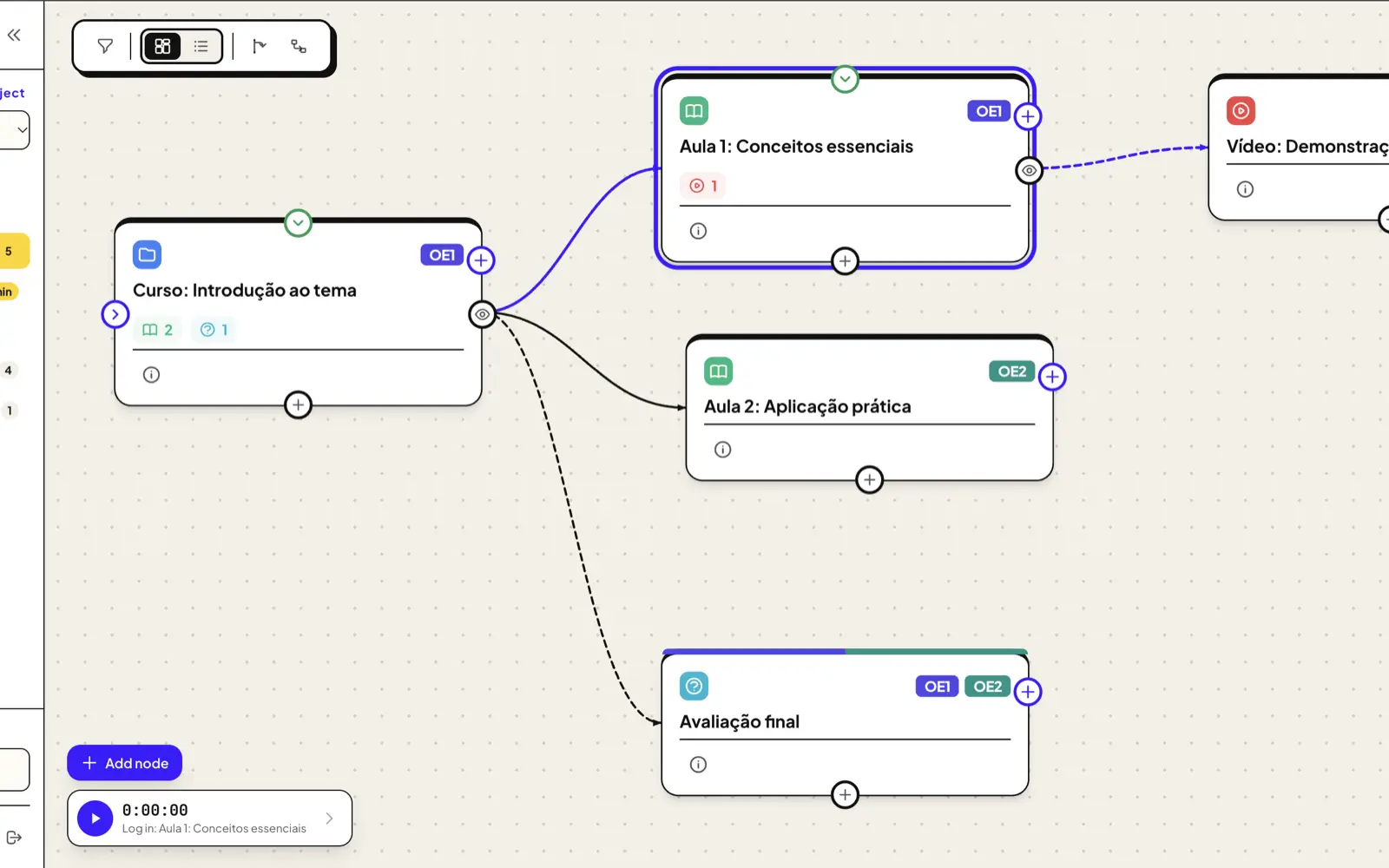
EduCanvas puts that structure on a canvas. You draw the project as nodes and connect them: nested content (a lesson inside a module) and sequence (what comes next). Along the way you link educational objectives, assign who is responsible, and — when you want — add tasks, comments, time and collaboration. The plan stops being a pile of files and becomes a map you can see.
Courses
Online courses with modules, lessons, videos and assessments.
Learning paths
Learning paths that connect several steps in sequence.
In-person training
In-person training sessions, workshops and team activities.
Educational apps
Educational products and apps, mapped before they are built.
2How it works
Each node has a type and a title and can carry objectives, custom fields, a person in charge and a history of changes. You see the project through two independent axes: what you are looking at — Nodes, Tasks, Comments or Time — and how you are looking at it — Canvas or Linear.
Nodes & relations
Draw the project with node cards and connect them by nested content (child) and sequence (what comes next). Drag the cards and arrange the structure freely.
Educational objectives
Create objectives with a code and a colour and link each one to several nodes. Filter the whole project by objective to see where it shows up.
Canvas or Linear
Switch between the free-form Canvas and a Linear tree of the same content. Both show the structure, tasks, comments or time.
Node types
Start with Module, Lesson, Video, Quiz/Assessment, Presentation and Auxiliary Material — and customise the types, with their own icon, colour and custom fields.
Main path
Set a starting point and a display depth. The main path keeps the central route of the project in focus on the canvas.
Local mode & JSON
Work in local mode, with your data in the browser, or use the cloud integration with email/password login. Export and import projects as JSON.
3Optional features
Several features are optional: they ship turned off and you switch them on only when you need them. Turning one off hides it everywhere without deleting any data — turn it back on and the data returns.
Tasks
Tasks per node, with an optional due date and a person in charge.
Comments
Comment threads on each node, with replies that can be resolved.
Audit
History of changes per node and for the whole project, plus What's New since your last visit.
Collaboration
Collaborators with a role, roles with permissions, and guests with access to a single node.
Timer
A timer that records time on a node or on the project, with totals in hours.
Organisations
Organisations with an hourly rate, turning recorded time into a value in R$.
Time & billing
With the timer and organisations on, EduCanvas records time on each node or on the project and resolves an hourly rate per organisation or project. You get totals in hours and in R$ — useful for freelancers and consultants who bill for instructional design work.
4Start from a template
When you create a project, a template library opens. Pick a blank project or one of the ready-made models — each one brings its own node types, objectives and nodes already connected, so you start with a structure to adapt.
- draftBlank project
- menu_bookShort online course
- routeLearning path
- smartphoneEducational app
- smart_toyAI chatbot
- groupsIn-person training
- diversity_3Team building
- badgeSales onboarding
5Who it is for
EduCanvas is built for people who design and build learning: instructional designers, educators, freelancers and consultants, L&D and T&D teams, content creators, SMEs, leaders and product managers of educational products.
6Technical decisions
This part is less about what EduCanvas does and more about how it was thought out and put together. The choices below explain the shape of the product more than any feature list.
Nodes on two independent axes
Everything is a node with relations — nested content and sequence. Navigation was split into two axes that don't interfere: what you look at (Nodes, Tasks, Comments, Time) and how you look at it (Canvas or Linear). The same data renders either way, instead of one rigid tree.
Soft-delete, never destructive
Deleting a node moves it to a trash that keeps its history, instead of erasing it. Every edit and move is logged per node. The decision was to never lose the trail of how a project evolved — restore brings a node back, the audit stays.
Optional features, off by default
Tasks, comments, audit, collaboration, time and organisations ship turned off. A missing or unknown preference reads as off, so new features can be added later without breaking existing accounts. The canvas stays simple until someone needs more.
Local first, cloud when needed
In local mode the project lives in the browser — localStorage for the data, IndexedDB for attachments — so it works with no account. A cloud integration (email/password auth, a managed data layer) adds accounts across devices. You can export and import a project as JSON either way.
Private by default, fail-closed
In the cloud, a project is private to its owner by default. Access is checked on the backend in layers — the data layer, a request-time authorizer and per-operation rules — and the UI only mirrors it. There are two levels: project members, and guests scoped to a single node. When in doubt, access is denied rather than granted.
Auth tables on their own stack
The tables the authorizer reads to decide access were pulled out of the API's data layer into their own stack. The reason is a rule that is easy to miss: an authorizer cannot depend on the API it authorizes, or the deploy hits a circular dependency. Separating them keeps a single, orderable direction.
Static front, no build step
The interface is plain HTML, CSS and JavaScript with no framework and no build step — served as static files. It keeps the app easy to host and fast to load.
PT as the source of truth
The app is bilingual (PT/EN) through a lightweight key-based runtime, with Portuguese as the source of truth and English additive — a missing key falls back to PT instead of showing nothing. Interface is translated; user content and audit history are not.
Draw your next project on the canvas
Open EduCanvas and start from a blank project or a template. It runs in local mode in the browser, so you can try it right away.
Open EduCanvas north_east